1. Background & Context
Microsoft has announced that the Secure Boot certificates originally provisioned in 2011 will expire in June 2026. This affects virtually every Windows device in enterprise environments and demands proactive preparation. The transition to the new 2023 certificates is not a simple patch — it requires thorough understanding of your hardware landscape, firmware readiness, and a deliberate governance-driven rollout plan.
If your organization has not started preparing, you are already behind. The Microsoft 2011 Secure Boot CA certificate expires in June 2026. Devices that haven't been updated will fail to boot trusted code signed with newer certificates, potentially causing significant operational disruption.
This blog is the result of extensive hands-on work preparing thousands of enterprise devices for this transition. I am sharing the complete approach — from initial discovery scripts to PowerBI governance dashboards and the final registry-based deployment method — so that other IT professionals and organizations can benefit from a proven, production-tested playbook.
Key Microsoft References
The following official sources were instrumental in building this approach:
- Act now: Secure Boot certificates expire in June 2026 — Windows IT Pro Blog
- Secure Boot playbook for certificates expiring in 2026 — Windows IT Pro Blog
- Secure Boot Certificate updates: Guidance for IT professionals and organizations
- Secure Boot DB and DBX variable update events
- Microsoft Intune method of Secure Boot with IT-managed updates
- Registry key updates for Secure Boot: IT-managed updates
- OEM pages for Secure Boot
- Microsoft 2011 Secure Boot Certificate Expiration — Dell
- Secure Boot Certificate Expiration — Lenovo
- Secure Boot — Richard M. Hicks Consulting
2. What is Secure Boot & Why It Matters
Secure Boot Architecture & Components
Secure Boot is a security feature built into the UEFI (Unified Extensible Firmware Interface) firmware specification. It establishes a chain of trust from the moment a device powers on through to the operating system kernel loading. Its purpose is straightforward but critical: ensure that only trusted, cryptographically signed code is executed during the boot process.
The Secure Boot trust chain relies on several certificate databases stored in UEFI firmware:
| Database | Full Name | Purpose |
|---|---|---|
| PK | Platform Key | The root of trust. Typically set by the OEM. Authorizes changes to the KEK database. |
| KEK | Key Exchange Key | Authorizes updates to the DB and DBX. Microsoft provisions a KEK to allow Windows to manage the trust chain. |
| DB | Signature Database (Allow) | Contains trusted certificates and hashes. Boot loaders signed by certificates in DB are allowed to execute. |
| DBX | Forbidden Signature Database | Contains revoked certificates and hashes. Anything matching DBX is blocked from execution — even if present in DB. |
Where Windows Gets Involved
When a Windows device boots with Secure Boot enabled, the firmware checks each component in the boot chain — the bootloader (bootmgfw.efi), the kernel, and early-load drivers — against the DB and DBX. Windows relies on the Microsoft Windows UEFI CA certificate in the DB to validate its boot components. The KEK certificate allows Microsoft and the OEM to update these databases through Windows Update or manual deployment.
Relevance to Enterprise Security in the Age of AI & Emerging Threats
In today's threat landscape, attackers increasingly target the pre-OS boot environment. Bootkits and firmware-level malware like BlackLotus have demonstrated that compromising the boot chain gives an adversary persistent, nearly invisible access that survives OS reinstalls and even disk replacements. Secure Boot is the frontline defense against these attacks.
With the rise of AI-powered attack techniques and sophisticated supply chain threats, maintaining a verified boot chain is no longer a "nice to have" — it's foundational to Zero Trust architecture. Many compliance frameworks (including conditional access policies in Microsoft Entra) increasingly require Secure Boot as a device health attestation signal.
Risks if Not Mitigated Before Certificates Expire
If the legacy 2011 certificates expire without the updated 2023 certificates being applied:
- Devices may fail to validate boot components signed with new certificates, potentially preventing boot
- Windows Update may be unable to deliver future security updates that depend on the new certificate chain
- Device health attestation signals (used by Conditional Access, Intune Compliance, etc.) may break
- Manual recovery may be required on affected devices — at scale, this is operationally devastating
3. What is Changing?
Microsoft is replacing three critical Secure Boot certificates that were originally provisioned in 2011 with their 2023 successors. These certificates span the KEK database and the Signature Database (DB), and together they form the complete trust chain that Windows and third-party UEFI applications rely on during boot.
| Component | Database | Legacy (2011) | New (2023) |
|---|---|---|---|
| Key Exchange Key | KEK | CN=Microsoft Corporation KEK CA 2011 | CN=Microsoft Corporation KEK 2K CA 2023 |
| Windows UEFI CA | DB | CN=Microsoft Windows Production PCA 2011 | CN=Microsoft Windows UEFI CA 2023 |
| Third-Party UEFI CA | DB | CN=Microsoft Corporation UEFI CA 2011 | CN=Microsoft UEFI CA 2023 |
Each of these three certificates serves a distinct role in the Secure Boot trust chain. The KEK certificate is what authorizes Microsoft to update the DB and DBX databases on your devices — without a valid KEK, Windows cannot add new trusted signatures or revoke compromised ones, effectively freezing your security posture. The Windows UEFI CA is the certificate that validates the Windows boot loader, kernel, and early-load drivers — it is the reason Windows is allowed to boot at all on a Secure Boot-enabled device. The Third-Party UEFI CA validates non-Windows UEFI applications, drivers, and Option ROMs — this includes hardware add-in card firmware (network adapters, storage controllers, GPUs), third-party bootloaders (e.g., Linux shim), and other UEFI-signed components. If any of these three certificates expire without being replaced, the corresponding trust chain breaks.
The certificate update process involves writing the new certificates to the UEFI firmware's KEK and DB databases. This is a firmware-level change and requires a device reboot to apply. Microsoft has built servicing mechanisms into Windows to facilitate this, but the process is not automatic for IT-managed devices — organizations must explicitly enable the update.
4. Understanding Dependencies
Before deploying certificate updates at scale, you need to thoroughly understand your environment. This is not a "click and pray" situation. Each of the following areas can be a blocker.
Current Secure Boot State
Not all devices in your environment may have Secure Boot enabled. Legacy deployments, BIOS-based imaging, or manual overrides can leave Secure Boot turned off. Devices with Secure Boot disabled cannot receive certificate updates.
Hardware Landscape
Your fleet likely spans multiple OEMs (Dell, Lenovo, HP, etc.), dozens of models, and varying firmware versions. Each OEM has published minimum firmware requirements for Secure Boot certificate compatibility. A device on an old firmware version may not support the update — or worse, may brick during the process.
Firmware Inconsistencies
Even within the same model family, firmware versions can vary wildly across your fleet. OEM-specific BIOS/UEFI updates are a prerequisite in many cases. Microsoft has published OEM-specific guidance pages that map model families to minimum supported firmware versions.
Readiness Indicators
Microsoft provides several registry-based signals that indicate whether a device is ready for the certificate update:
WindowsUEFICA2023Capable— Whether the device's servicing stack considers it compatible (values: 0, 1, 2)ConfidenceLevel— Microsoft's assessment of update confidence (High Confidence, Needs More Data, Unknown)UEFICA2023Status— Current update status (NotStarted, InProgress, Updated)
Success / Failure Indicators
Windows logs specific events to track the certificate update lifecycle:
| Event ID | Meaning |
|---|---|
| 1800 | Pending reboot — the certificate update has been staged and is waiting for a restart to apply. Typically seen after the first reboot. |
| 1801 | Certificates are available but not yet applied. Contains confidence level and diagnostic information. |
| 1808 | Certificates have been successfully updated in firmware. This is the reliable success indicator. |
| Others | Various error and status codes documented in Microsoft's event reference |
5. Strategy: Data Gathering & Governance
The cornerstone of this entire approach is collecting the right data directly from the source of truth — the devices themselves. Rather than relying on potentially stale data from Intune device records, SCCM, or third-party tools, I built a custom telemetry collection pipeline that reads directly from each device's registry, firmware, event logs, and system APIs.
Architecture Overview
Audit Script
(runs on device)
(daily execution)
Analytics
(HTTP Data Collector API)
Dashboards
(MQuery import)
Mass Data Collection Approach
The deployment model uses a single Intune Platform Script that serves as a wrapper. This script:
- Creates a persistent local folder on the device
- Writes the embedded Audit Script content to a local
.ps1file - Executes the Audit Script once during initial deployment (silent execution)
- Creates/updates a Scheduled Task to run daily as SYSTEM with highest privileges, whether or not a user is logged on, and runs ASAP if the scheduled time was missed
This single-script approach was chosen deliberately over packaging as an Intune Win32 Application. It could have been done using Intune Detection Scripts, but due to the 200 script limit for Intune Detection Scripts, I prefer this method which keeps headroom for detection scripts needed for other purposes in the future. The Platform Script approach is simpler to maintain and deploy.
Script Architecture: A Reusable Modular Framework
The solution consists of two scripts working together: a Main Script (the Scheduled Task wrapper) and an Audit Script (the telemetry collector embedded within). This modular design makes the framework reusable far beyond Secure Boot — the Main Script can embed any PowerShell script that needs to run as a scheduled task on managed devices.
Main Script — Scheduled Task Wrapper
The Main Script is a self-contained Intune Platform Script that handles deployment, execution, and scheduling. It creates a persistent local folder, writes the embedded secondary script to disk, executes it once during deployment, and registers a daily Scheduled Task running as SYSTEM with highest privileges. If the scheduled time is missed (e.g., device was off), it runs as soon as the device is available.
All behavior is controlled through configurable values at the top of the script:
| Parameter | Purpose |
|---|---|
$TaskName | Display name for the Scheduled Task in Task Scheduler |
$TaskPath | Task Scheduler folder path (must start and end with \) |
$DestinationFolder | Local folder where the embedded script is written |
$SecondaryScriptFileName | Filename for the embedded script on disk |
$DailyRunTime | Scheduled execution time in 24-hour HH:mm format |
$RunSecondaryOnceNow | Whether to execute the embedded script immediately during deployment |
$ExecutionPolicy | PowerShell execution policy for both one-time and scheduled runs |
$UseNoProfile / $HiddenWindow | Silent, profile-free execution for background operation |
$AllowOnBatteries / $DontStopOnBatteries | Ensures task runs on laptops regardless of power state |
$EnableLog / $LogPath | Local deployment logging for troubleshooting |
$FailInstallIfSecondaryFails | Controls whether a non-zero exit from the embedded script fails the Intune install |
The Main Script is designed as a generic scheduled-task deployment vehicle. By replacing the content within the $SecondaryScriptContent here-string, you can deploy any PowerShell script as a daily scheduled task via Intune — compliance checks, inventory collectors, configuration enforcers, log shippers, or any other scenario that requires recurring device-level execution under SYSTEM context. The scheduling, logging, battery behavior, and idempotent task registration logic are all handled for you.
Audit Script — Telemetry Collector (Embedded)
The Audit Script is the payload embedded within the Main Script for this Secure Boot use case. It is a comprehensive device posture collector that gathers 45+ data points across Secure Boot readiness, hardware/firmware, identity, OS, patching, and reboot health. It runs under SYSTEM context, ensuring access to all necessary registry keys, UEFI firmware variables, and system APIs without user interaction.
Key configurable values within the Audit Script's $Config hashtable:
| Parameter | Purpose |
|---|---|
WorkspaceId / SharedKey / LogType | Azure Log Analytics workspace credentials and custom table name |
LocalMode / LocalModeSendToLA | Toggle between CSV-only, Log Analytics-only, or both |
CsvPath / CsvFileName | Local CSV export location for validation and offline use |
LocalLogRoot / LocalLogFilePrefix | Per-run log file location for device-level troubleshooting |
PreferRdpIdentityForLastLoggedOnUser | Enable RDP/AVD identity fallback for VDI environments |
DeviceTypeRules | Configurable array of naming convention rules to classify device types |
Desired | Explicit pass/fail criteria for the OverallStatus assessment |
MaxEventsToScan / SecurityLogMaxEventsToScan | Event log scan depth controls to balance thoroughness vs. performance |
WuaHistoryMaxItems / WuaHistoryTimeoutSec | WUA history read guardrails to avoid hangs on some devices |
GitHub Repository & Scripts
The complete scripts are open-sourced on GitHub:
- Repository: github.com/satishsinghi-gh/secureboot_deviceinsights
- Audit Script (Main + Embedded): Device Insights - SecureBoot.ps1
- SecureBoot Certificate Update Deployment Script (Registry Config): SecureBoot Certificate Update Deployment (Registry Config).ps1
6. Telemetry & Data Collection Deep Dive
The audit script collects an extensive set of data points from each device. Every field is designed to answer a specific question about readiness, health, or remediation status. Here is a breakdown of the key telemetry categories:
The table below is the complete reference of every field collected by the audit script, organized by category. This is derived directly from the script's output schema — every row sent to Log Analytics or written to CSV contains all of these columns.
Execution & Timestamp Fields
| Field | Source | Purpose |
|---|---|---|
DeviceName | $env:COMPUTERNAME | Hostname identification |
DateOfExecution | Script execution date (yyyy-MM-dd) | When the telemetry was collected (date only) |
ClientLocalTime | Script execution local time | Full local date/time of collection (yyyy-MM-dd HH:mm:ss) |
TimeGeneratedUtc | UTC timestamp (ISO 8601) | Log Analytics time-generated field for accurate ingestion ordering |
Device & Identity Insights
| Field | Source | Purpose |
|---|---|---|
Entra_DeviceID | dsregcmd /status | Unique Entra device identifier for correlation with Intune/Entra data |
Device_AutopilotProfile | Registry: Provisioning\Diagnostics\Autopilot | Autopilot deployment profile name |
Device_Type | Configurable naming convention rules (Initials/Suffix match) | Classify by use case (Laptop, AVD, Kiosk, Shared PC, etc.) — most-specific rules win |
Device_UpTime | Calculated: execution time minus LastBootDateTime | Hours since last reboot — flags devices that haven't rebooted |
Device_Identity_JoinType | dsregcmd /status | Entra Joined, Hybrid Joined, Domain Joined, or Workgroup |
LastLoggedOnUser | LogonUI registry + CIM fallback | Last logged-on user (NTID or best-effort display). Intune primary user is not always reliable (e.g., Kiosks, Shared Devices) |
LastLoggedOnUser_UPN | LogonUI + IdentityStore cache + Security 4624 LogonType 10 fallback (for VDI/AVD) | User Principal Name — helps understand who exactly is logging on the device |
LastLoggedOnUserSid | LogonUI registry (LastLoggedOnUserSID) | SID for authoritative identity resolution and 4624 correlation |
LastLogonDate | Security 4624 (primary) → Win32_NetworkLoginProfile → Win32_UserProfile (fallbacks) | Date of last interactive logon |
LastLogonTimestamp | Same multi-source approach as above | Full date/time of last interactive logon |
LastLogonSource | Determined by which source provided the logon data | Indicates whether logon came from Security4624, Win32_NetworkLoginProfile, or Win32_UserProfile |
OS Insights
| Field | Source | Purpose |
|---|---|---|
OS_Edition | Win32_OperatingSystem.Caption | Full OS edition (e.g., Microsoft Windows 11 Enterprise, Windows 10 IoT Enterprise LTSC) |
OS_DisplayVersion | Registry: CurrentVersion\DisplayVersion | OS release caption (e.g., 24H2, 25H2, 23H2) |
OS_Build | Registry: CurrentVersion\CurrentBuildNumber | Major build number (e.g., 26200) |
OS_BuildFull | CurrentBuildNumber.UBR | Full build revision (e.g., 26200.7628) — indicates patch currency |
Reboot & Patching Insights
| Field | Source | Purpose |
|---|---|---|
LastBootDate | Win32_OperatingSystem.LastBootUpTime | Date of last reboot (yyyy-MM-dd) |
LastBootTime | Win32_OperatingSystem.LastBootUpTime | Time of last reboot (HH:mm:ss) |
LastPatch_InstallDate | CBS Package_for_RollupFix (authoritative) | Authoritative install date of the latest cumulative update |
LastPatch_ReleaseInfo | Derived from CBS install time | Patch release period (e.g., 2026-02) |
LastPatch_KB | WUA history enrichment (filters Defender/SSU/.NET/MSRT/Preview/OOB) | KB number of the last cumulative patch |
LastPatch_BuildRevision | CurrentBuildNumber.UBR from registry | Running OS build revision — this is what the device is actually on right now |
LastPatch_Caption | WUA history enrichment | Full title of the last cumulative update (e.g., "2026-02 Update (KB5052000) (26200.7628)") |
Hardware & Firmware Insights
| Field | Source | Purpose |
|---|---|---|
HW_OEM | SecureBoot\Servicing\DeviceAttributes\OEMManufacturerName | OEM Manufacturer (Dell Inc., LENOVO, HP, etc.) |
HW_Model_Family | SecureBoot\Servicing\DeviceAttributes\OEMModelSystemFamily | Model family for grouping (e.g., Latitude) |
HW_Model | SecureBoot\Servicing\DeviceAttributes\OEMModelNumber | Specific model number (e.g., Latitude 7440) |
HW_SKU | SecureBoot\Servicing\DeviceAttributes\OEMModelSKU | Model SKU for further granularity |
HW_FirmwareVersion | SecureBoot\Servicing\DeviceAttributes\FirmwareVersion | Current BIOS/UEFI firmware version — critical for OEM minimum version checks |
HW_FirmwareReleaseDate | SecureBoot\Servicing\DeviceAttributes\FirmwareReleaseDate | When the running firmware was released |
Microsoft's OEM compatibility pages specify minimum firmware versions required for safe Secure Boot certificate updates. A device running an outdated firmware may fail the update or, in worst-case scenarios, encounter boot issues. This telemetry lets you cross-reference your fleet against OEM requirements before deployment.
Secure Boot Insights
| Field | Source | Purpose |
|---|---|---|
SecureBoot_Status | Confirm-SecureBootUEFI / SecureBoot\State registry | Is Secure Boot enabled? (True/False) |
SecureBoot_AvailableUpdates | HKLM:\...\SecureBoot\AvailableUpdates | Registry value indicating if the update trigger has been deployed (e.g., 22852 = 0x5944) |
SecureBoot_Servicing_ConfidenceLevel | SecureBoot\Servicing\ConfidenceLevel | Microsoft's confidence assessment for the device |
SecureBoot_Servicing_CertStatus | SecureBoot\Servicing\UEFICA2023Status | Current update status: NotStarted, InProgress, or Updated |
SecureBoot_Servicing_CertUpdate_Compatibility | SecureBoot\Servicing\WindowsUEFICA2023Capable | Compatibility level: 0 = not capable, 1 = partially capable, 2 = fully capable |
SecureBoot_Servicing_UEFICA2023Error | SecureBoot\Servicing\UEFICA2023Error | Error code if the certificate update failed |
SecureBoot_Servicing_UEFICA2023ErrorEvent | SecureBoot\Servicing\UEFICA2023ErrorEvent | Associated error event ID for troubleshooting |
KEK Certificate Insights
| Field | Source | Purpose |
|---|---|---|
SecureBoot_Cert_Legacy | Get-UEFICertificate -Type KEK (reads firmware directly) | Subject of the legacy 2011 KEK certificate (Shout out to Richard Hicks) |
SecureBoot_Cert_Desc_Legacy | Same — Issuer field from X.509 cert | Issuer/description of the legacy certificate |
SecureBoot_Cert_Expiry_Legacy | Same — NotAfter field from X.509 cert | Expiration date of the legacy 2011 certificate |
SecureBoot_Cert_Current | Get-UEFICertificate -Type KEK (reads firmware directly) | Subject of the new 2023 KEK certificate. Does not imply certificates have been applied — checks firmware presence |
SecureBoot_Cert_Desc_Current | Same — Issuer field from X.509 cert | Issuer/description of the 2023 certificate |
SecureBoot_Cert_Expiry_Current | Same — NotAfter field from X.509 cert | Expiration date of the new 2023 certificate |
Event Log Insights
| Field | Source | Purpose |
|---|---|---|
SecureBoot_CertUpdate_Events_1801 | System Event Log (latest Event ID 1801) | Full message retained — "Certs available but not applied" content with diagnostics, unless otherwise |
SecureBoot_CertUpdate_Events_1801_TimeStamp | System Event Log | When the latest 1801 event was logged |
SecureBoot_CertUpdate_Events_1801_Confidence | Parsed from 1801 message body | Confidence level: High Confidence, Needs More Data, Unknown, Paused, or Blank |
SecureBoot_CertUpdate_Events_1808 | System Event Log (latest Event ID 1808) | "Secure Boot CA certificates have been updated" or "...have not been updated yet" — the reliable success indicator |
SecureBoot_CertUpdate_Events_1808_TimeStamp | System Event Log | When the certificate update completed |
Overall Status
| Field | Source | Purpose |
|---|---|---|
OverallStatus | Computed from configurable $Config.Desired criteria | "All checks passed" or "Need Attention (field_1, field_2)" — lists every failing column for targeted remediation |
Overall Status Assessment
The script computes an OverallStatus field based on explicit criteria you define in the configuration:
$Config.Desired = [ordered]@{
    SecureBoot_Status                             = $true
    SecureBoot_Servicing_CertStatus               = "Updated"
    SecureBoot_Servicing_CertUpdate_Compatibility = "2"
    SecureBoot_Cert_Current                       = "CN=Microsoft Corporation KEK 2K CA 2023, ..."
}
If all criteria pass, the status is "All checks passed". Otherwise, it reports "Need Attention" with the specific failing columns, making remediation targeting straightforward.
Validation Before Mass Deployment
Before ingesting data at scale into Log Analytics, thorough validation is essential:
Step 1: CSV Validation
Run the script in LocalMode = $true to generate a CSV file. Open it in Excel and verify that all rows, columns, and values are populated as expected. This catches formatting issues, missing data, and unexpected values before they hit your log workspace.
Step 2: Log Analytics Smoke Test
Configure Log Analytics ingestion and run the script on a single device. Verify the data appears in your custom table in Log Analytics with correct schema and values. Check that timestamps, booleans, and string fields are all properly typed.
Step 3: Manual Production Test
Run the script manually on a small set of production devices (representing different OEMs, models, and configurations). Validate the ingested data against what you can physically verify on those machines.
7. Building Insights with Power BI
With telemetry flowing into Azure Log Analytics, the next step is transforming raw data into actionable governance dashboards. I imported the Log Analytics data into Power BI using the MQuery (Kusto) method, which allows direct querying of the Log Analytics workspace from Power BI.
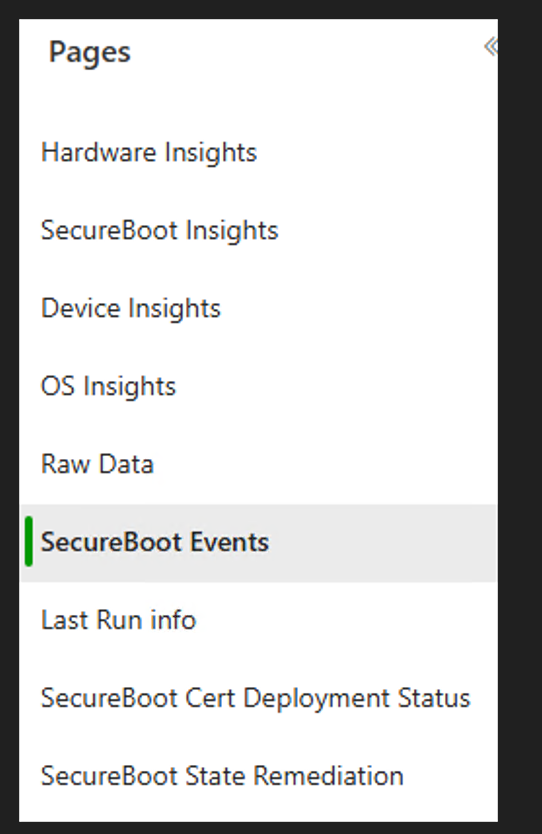
The Power BI report is organized into multiple focused pages, each addressing a different dimension of readiness and deployment tracking:
Secure Boot Insights Dashboard
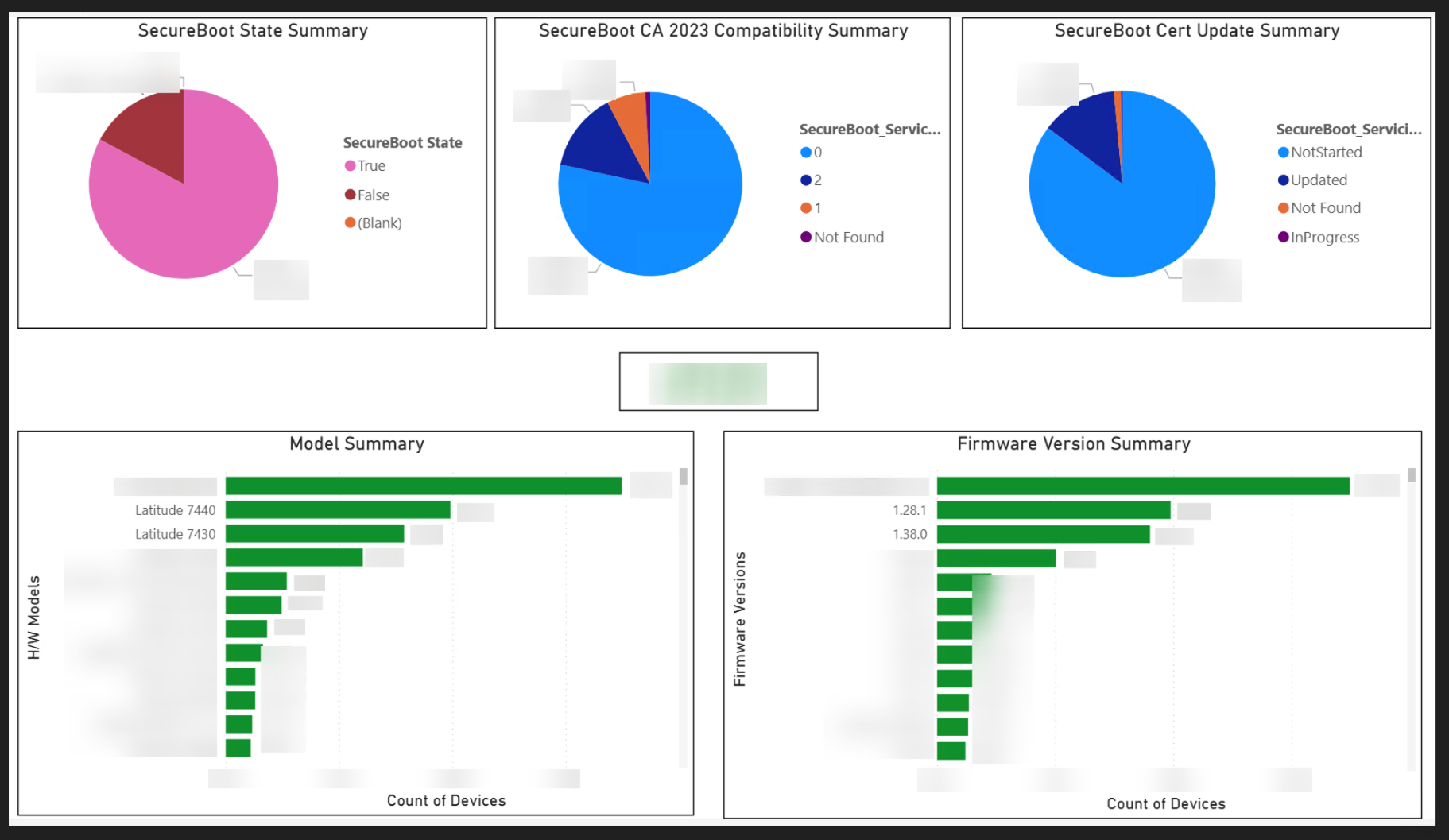
This is the primary governance view. At a glance, you can see what percentage of your fleet has Secure Boot enabled, how many devices are compatible with the 2023 CA update, and the current deployment progress. The model and firmware breakdowns below help identify which hardware segments need firmware updates before certificate deployment.
Hardware Insights Dashboard
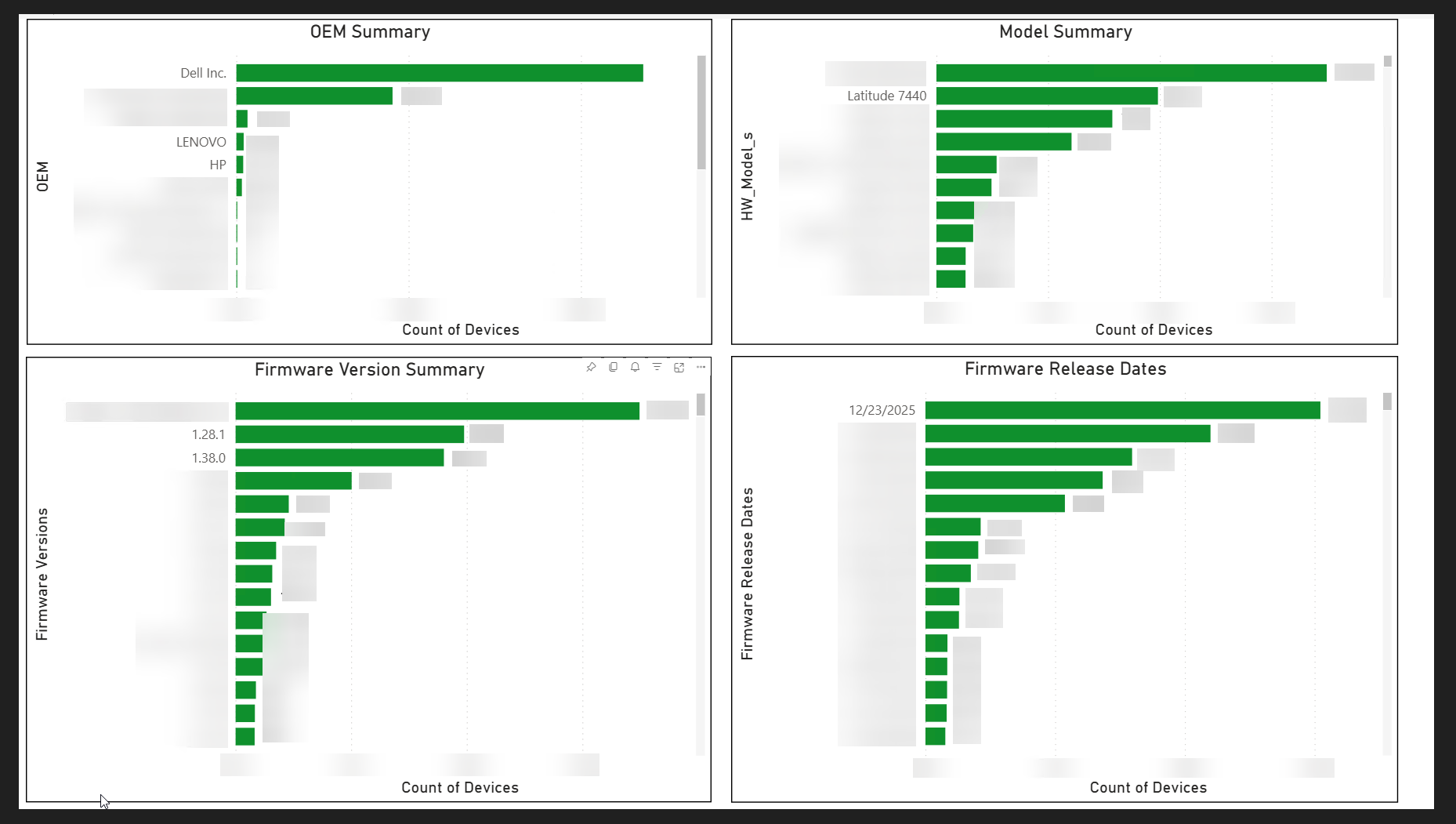
Understanding your hardware landscape is essential. This dashboard reveals OEM distribution (Dell, Lenovo, HP, etc.), the most common models, and critically, the spread of firmware versions and their release dates. Devices running firmware released before a certain date may need BIOS updates before the Secure Boot certificate update can proceed safely.
Device Insights Dashboard
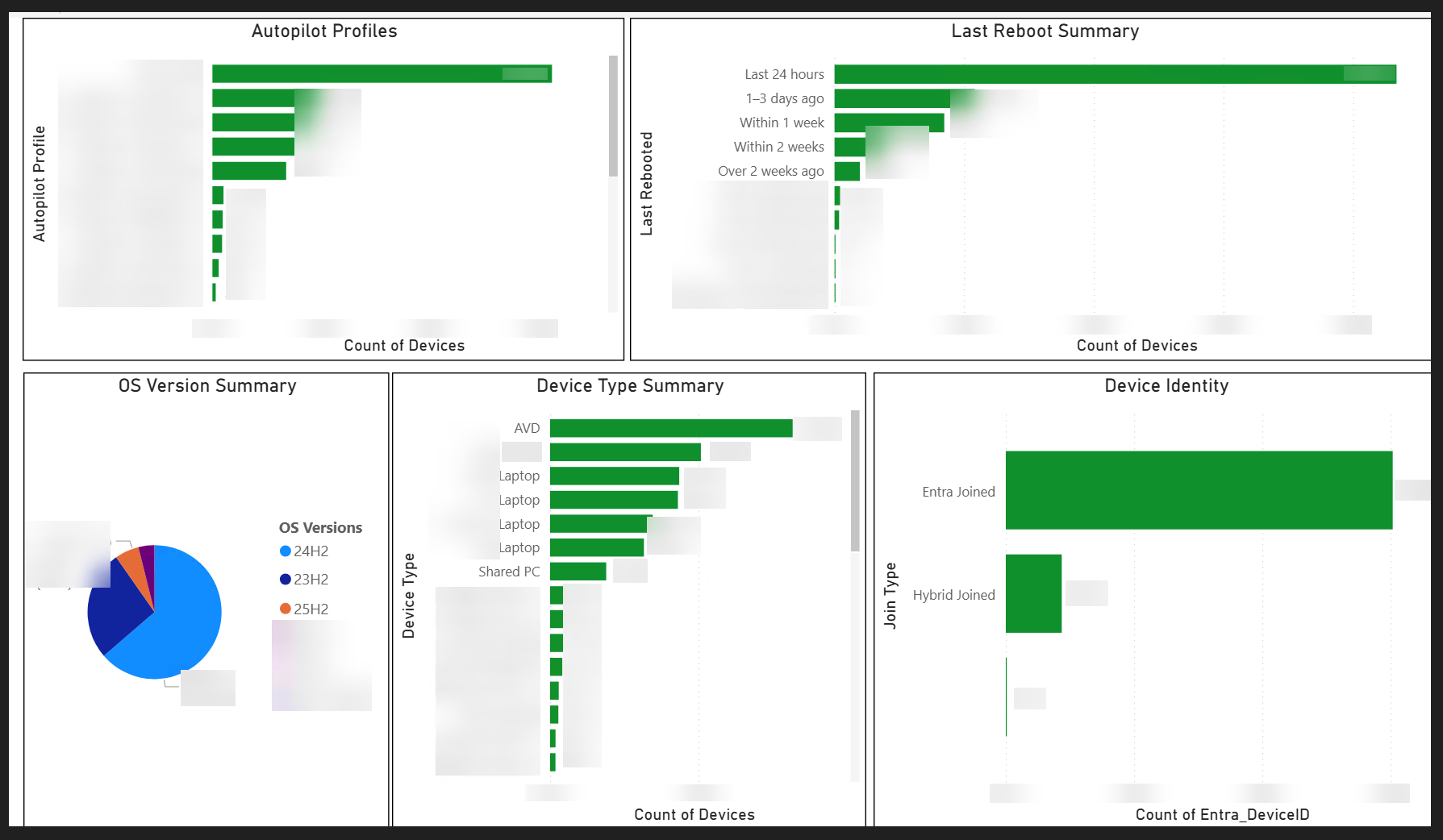
This page surfaces operational health indicators that directly affect Secure Boot readiness. The Last Reboot Summary is particularly important: devices that haven't rebooted recently won't complete the certificate update (which requires two reboots). The Device Type breakdown helps prioritize deployment rings — you may want to start with standard laptops before tackling shared devices, kiosks, or AVD instances.
OS Insights Dashboard
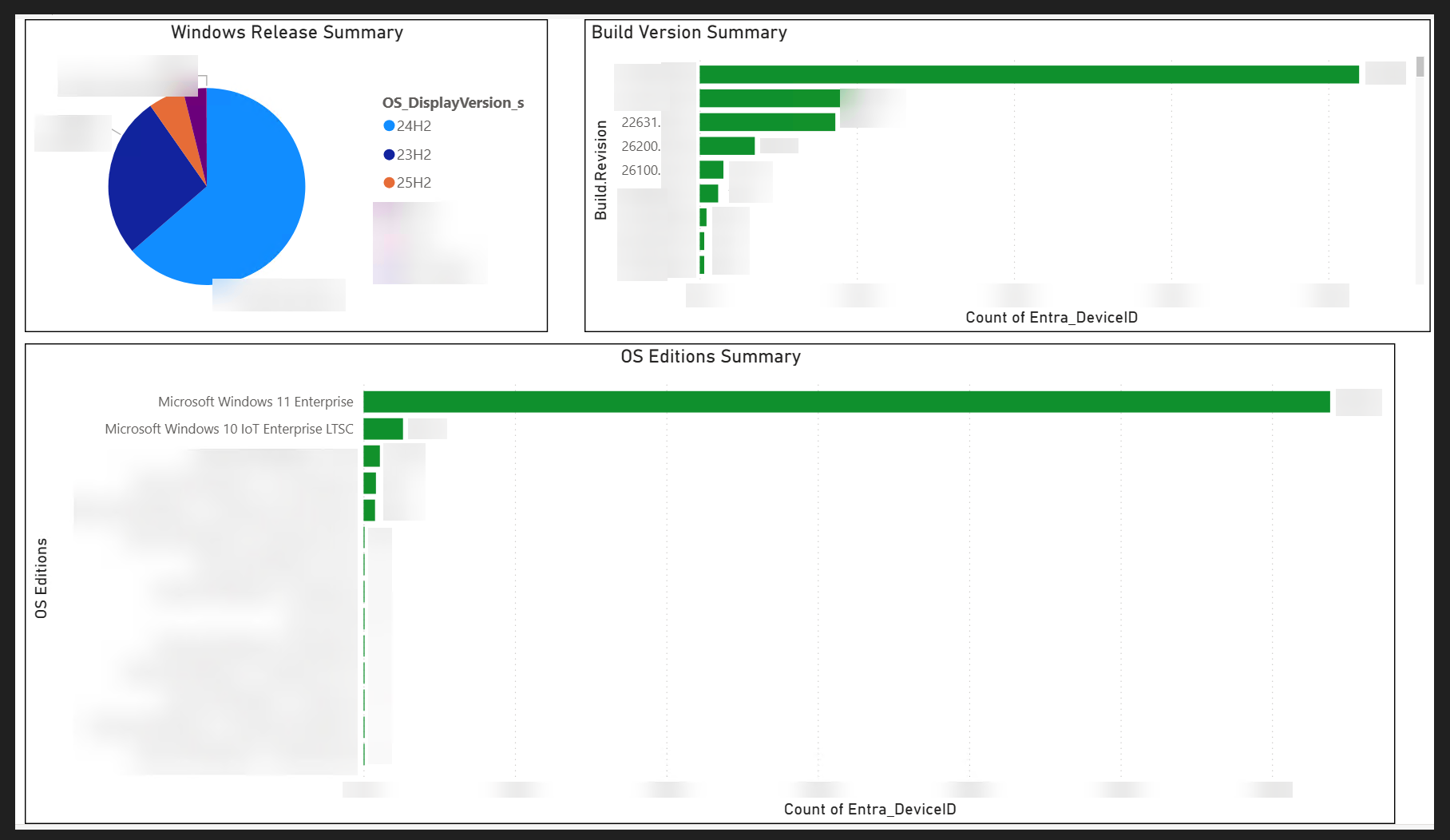
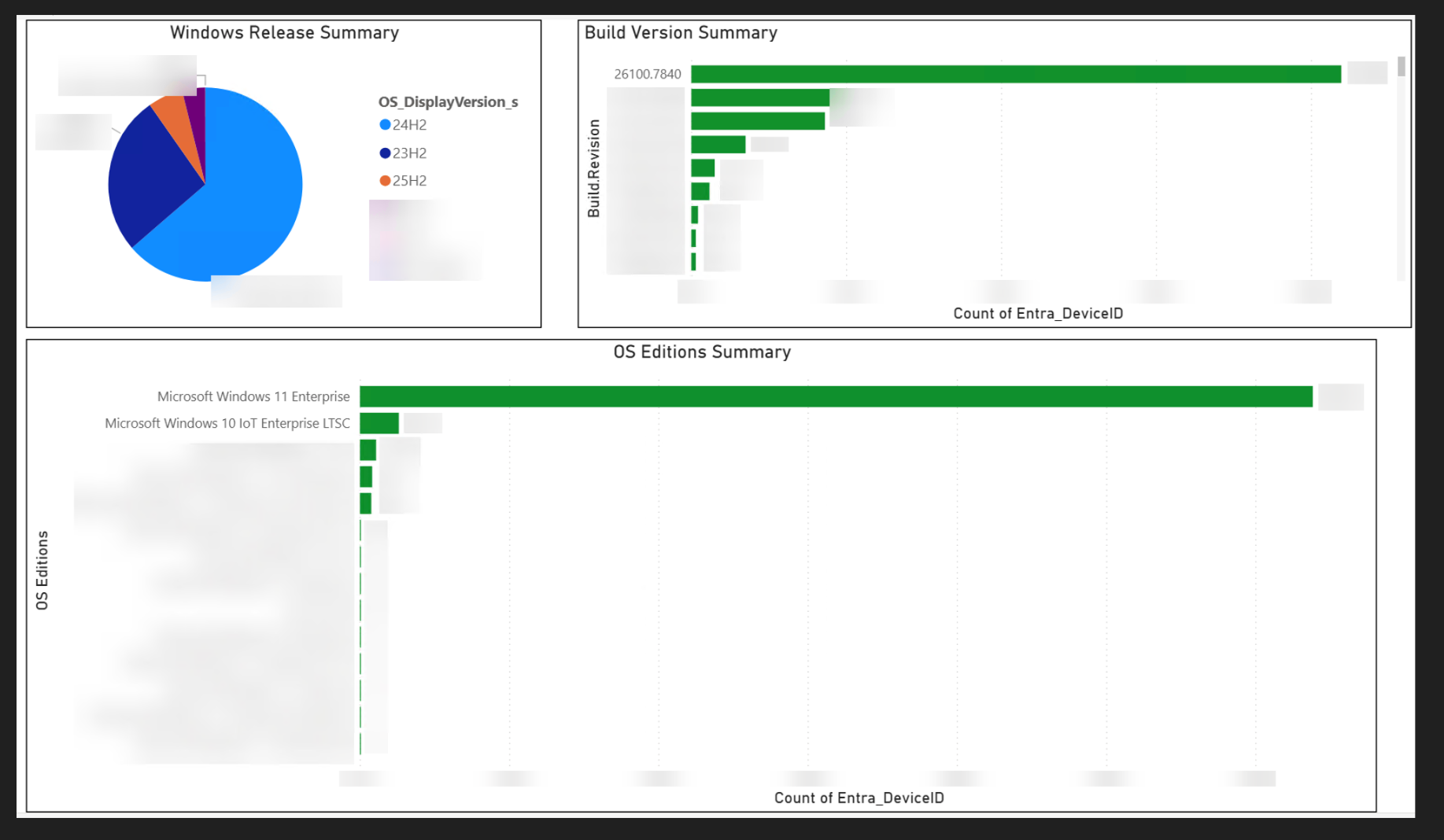
Secure Boot Events Dashboard
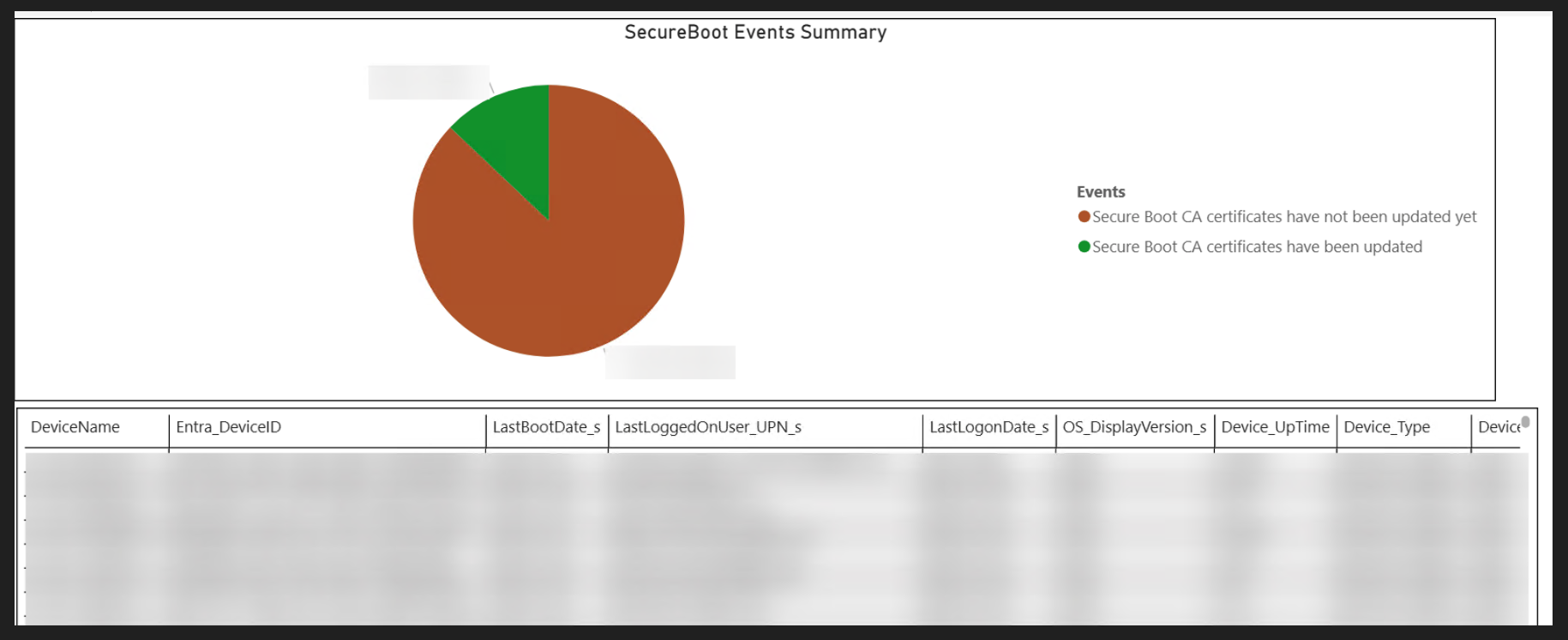
This is the deployment progress tracker. The Event 1808 indicator is the definitive signal that a device has completed the certificate update. Over time, the green slice should grow until it encompasses your entire fleet.
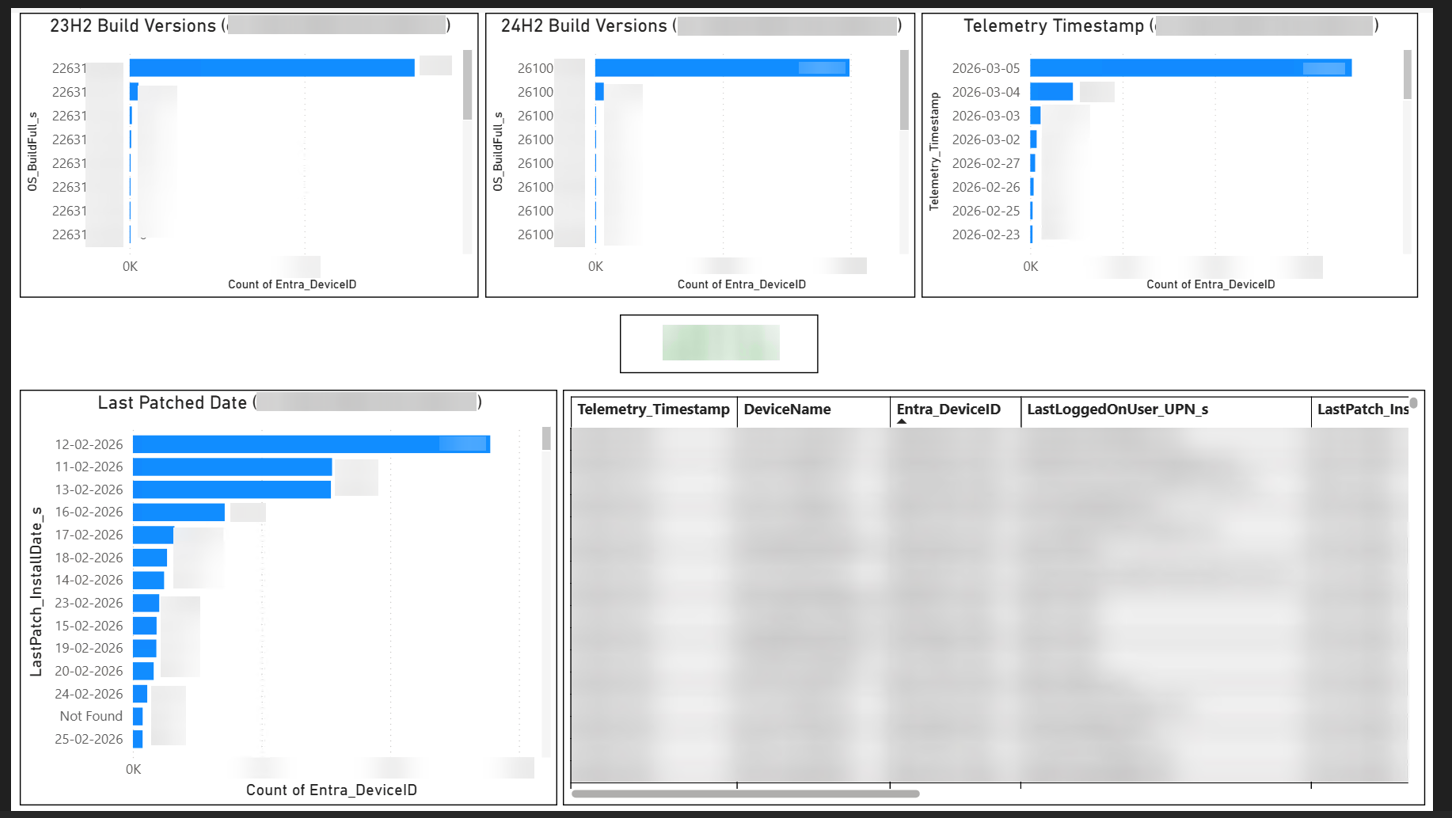
Deployment Status & Last Run Info
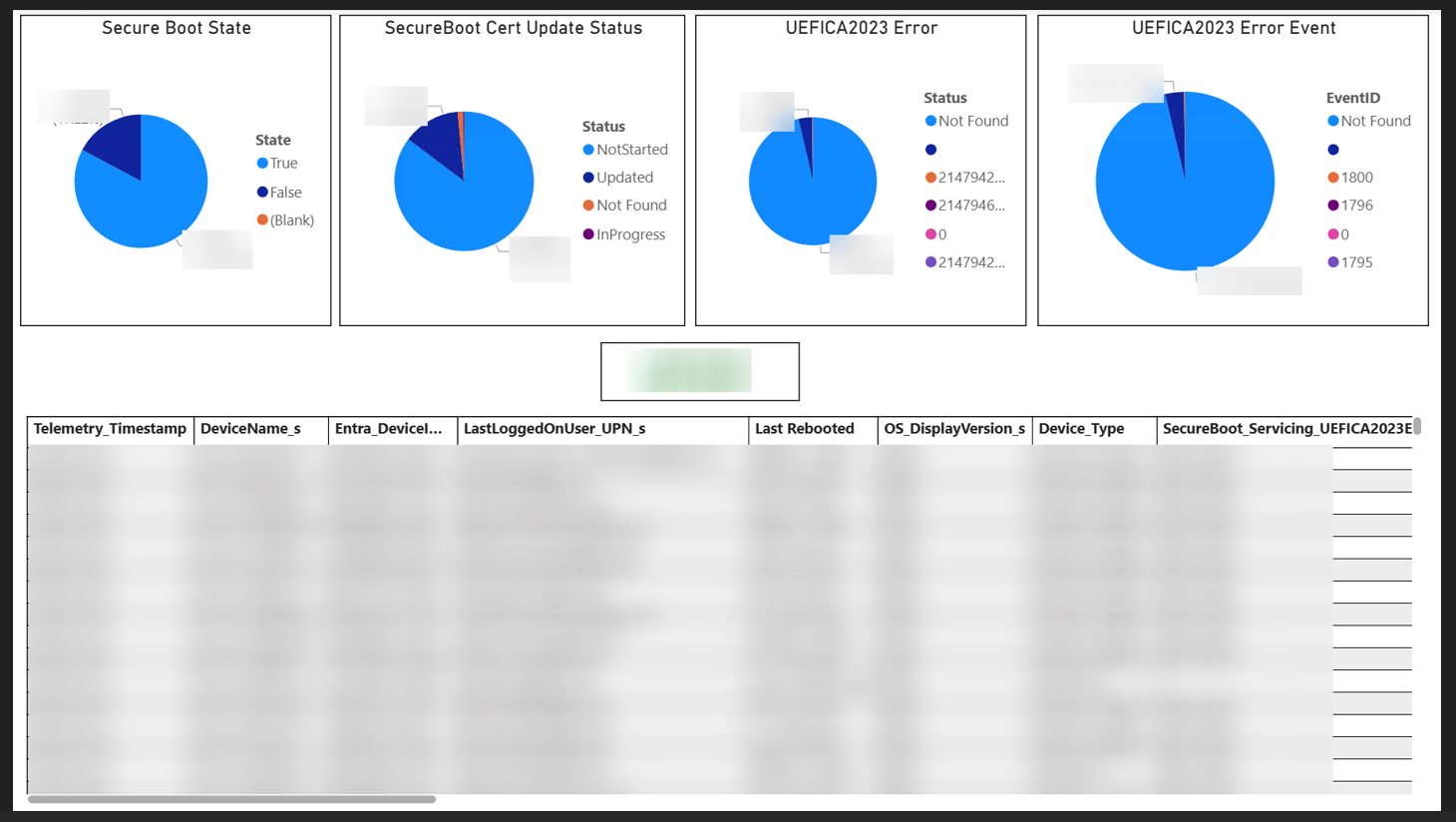
8. Deployment: Certificate Update Rollout
After thorough data collection, insight building, and prerequisite verification, it is time to deploy the actual certificate updates. Microsoft provides multiple deployment methods, and understanding all of them — along with their prerequisites and trade-offs — is essential for choosing the right approach for your environment.
Prerequisites
Regardless of which deployment method you choose, the following prerequisites must be met on each target device:
| Prerequisite | Details |
|---|---|
| Secure Boot Enabled | Secure Boot must be turned on. Devices with Secure Boot off are not applicable for the certificate update. |
| Firmware on Recommended Version | The device must be running firmware on the version recommended by the OEM. This is critical — outdated firmware may fail to process the certificate update or cause unexpected errors. Check your OEM's Secure Boot guidance page (Dell, Lenovo, etc.). |
| OS Patches Current | Device should be on a recent Windows cumulative update. The Secure Boot certificate update infrastructure relies on components delivered via Windows Update. |
| Reboot Capability | The certificate update requires one or more reboots to complete. Devices with excessive uptime or that never restart will not complete the process. As Microsoft states: "The Secure Boot deployment relies on restarts happening as the normal course of using the device." |
Deployment Options
Microsoft documents several deployment methods. It is important to evaluate all of them and choose based on your environment, licensing posture, and risk tolerance:
1. Automated Deployment Assists (Microsoft-Managed)
Microsoft provides two automated assists that can help deploy the certificates without direct IT intervention:
| Assist | How It Works | Requirements |
|---|---|---|
| High-Confidence Cumulative Updates | Microsoft creates "buckets" for unique device classes (defined by manufacturer, motherboard, firmware version, etc.). Once enough successful updates are observed for a bucket, it becomes "high-confidence" and the certificate update is included automatically in monthly cumulative updates. Microsoft has already started updating selected devices for high-confidence models beginning February 2026. | Does not require diagnostic data to be enabled. Enabled by default for high-confidence devices. |
| Controlled Feature Rollout (CFR) | Devices opted into CFR allow Microsoft to manage the certificate deployment. Microsoft monitors the rollout and controls pacing. | Requires diagnostic data enabled and the device must be opted in to CFR. Only supported on client versions of Windows 11 and Windows 10 with ESU. |
While Microsoft's automated deployment assists are helpful, they should not be your sole strategy. Not all devices will fall into high-confidence buckets, diagnostic data may not be enabled across your fleet, and CFR has its own limitations. It is best to keep all options open and proactively evaluate all deployment methods to ensure full coverage before the June 2026 deadline.
2. Registry Key Method (IT-Managed)
The registry-based method gives IT full control over deployment by setting a single registry value that triggers the built-in Secure Boot scheduled task:
Here is the complete deployment script:
# ================== CONFIG ==================

$RegPath   = "HKLM:\SYSTEM\CurrentControlSet\Control\SecureBoot"
$ValueName = "AvailableUpdates"
$HexValue  = 0x5944

# ============================================

# Ensure registry path exists
if (-not (Test-Path $RegPath)) {
    New-Item -Path $RegPath -Force | Out-Null
}

# Set DWORD value
New-ItemProperty -Path $RegPath -Name $ValueName `
    -PropertyType DWord -Value $HexValue -Force | Out-Null
This script can be deployed via Intune as a Platform Script, a Remediation Script, SCCM/ConfigMgr, GPO startup script, or any other deployment mechanism your organization uses. The full script is available on GitHub: SecureBoot Certificate Update Deployment (Registry Config).ps1
Once set, a Windows scheduled task runs every 12 hours and processes the certificate updates in a specific order:
| Step | Bit | Action |
|---|---|---|
| 1 | 0x0040 | Apply Windows UEFI CA 2023 to the DB |
| 2 | 0x0800 | Apply Microsoft Option ROM UEFI CA 2023 to the DB (if Microsoft Corporation UEFI CA 2011 is present) |
| 3 | 0x1000 | Apply Microsoft UEFI CA 2023 to the DB (if Microsoft Corporation UEFI CA 2011 is present) |
| 4 | 0x0004 | Apply Microsoft Corporation KEK 2K CA 2023 (signed by OEM's Platform Key) |
| 5 | 0x0100 | Apply the new boot manager signed by Windows UEFI CA 2023 |
Each step must succeed before the next one begins. As bits are processed, they are cleared from the AvailableUpdates value: 0x5944 → 0x5904 → 0x5104 → 0x4104 → 0x4100 → 0x4000. For complete details on the registry keys, see Registry Key Updates for Secure Boot.
3. Microsoft Intune / Configuration Manager
Microsoft documents that Intune and Configuration Manager can be used to deploy PowerShell scripts that set the registry keys. A native Configuration Service Provider (CSP) is expected in a future update.
In my experience, using the Intune Enable Secure Boot Certificate Updates policy resulted in Error Code 65000 (Error Type 2) with a state of "Error" in the Intune admin center. This was caused by a known bug in Intune's licensing check where the policy is rejected due to a flaw in license validation — even on properly licensed devices. The issue affected the "Enable Secure Boot Certificate Updates" setting under device configuration profiles.
Until this bug is confirmed resolved by Microsoft, the registry method deployed via Intune Platform Scripts (or Remediation Scripts) is a more reliable alternative, as it bypasses the CSP/policy layer entirely and directly configures the registry value.
4. Group Policy Objects (GPO)
Microsoft has indicated that Group Policy support for managing Secure Boot updates will be provided in a future update. Since GPO manages settings only, monitoring will need to be done through alternate methods such as registry key checks and event log monitoring.
5. Windows Configuration System (WinCS) CLI
For domain-joined environments, administrators can use the Windows Configuration System (WinCS) command-line tools (both a traditional executable and a PowerShell module) to query and apply Secure Boot configurations locally. This is an option for environments where other methods are not feasible.
Why the Registry Method Was the Most Effective
In my experience deploying across a diverse enterprise environment, the registry method was the most effective and reliable approach as long as the prerequisites were met — specifically, the device firmware was on the recommended version as documented by the OEM. It worked consistently across Dell, Lenovo, and HP hardware, across multiple firmware versions, and did not suffer from the licensing validation issues that plagued the native Intune policy approach.
The registry method gives IT full control over targeting and pacing, integrates cleanly with any deployment tool (Intune Platform Scripts, SCCM, GPO, etc.), and the progression through AvailableUpdates bits provides clear, monitorable state at every step.
The Reboot Requirement
Once the deployment is triggered (by any method), the device will require one or more reboots to complete the certificate update process. Critically:
- The reboot is neither forced nor prompted
- As Microsoft documents: "While a restart might be required to complete the process, initiating the deployment of the Secure Boot updates will not cause a restart. If a restart is needed, the Secure Boot deployment relies on restarts happening as the normal course of using the device."
- Microsoft estimates approximately 48 hours and one or more restarts for the certificates to fully apply
- Based on extensive testing, I can confirm that the process works exactly as documented — the updates apply during the next natural reboot cycle
Monitoring the Update Process
After deployment, the progress can be monitored through the following registry values and events:
| Indicator | Location / Event | What It Tells You |
|---|---|---|
| AvailableUpdates | SecureBoot registry | Bit progression: 0x5944 → 0x5904 → ... → 0x4000 (completion) |
| UEFICA2023Status | SecureBoot\Servicing registry | NotStarted → InProgress → Updated |
| UEFICA2023Error | SecureBoot\Servicing registry | Error code if the update fails (anything other than 0 or blank needs investigation) |
| UEFICA2023ErrorEvent | SecureBoot\Servicing registry | Associated error event for troubleshooting |
| Event 1801 | System Event Log | Certificates have not been applied yet — device still needs updating |
| Event 1808 | System Event Log | Definitive confirmation: "Secure Boot CA certificates have been updated" |
| Event 1795 | System Event Log | Firmware returned an error during certificate application — check with OEM for firmware update |
| KEK Certificate | Get-UEFICertificate -Type KEK | Presence of "KEK 2K CA 2023" in firmware confirms physical update |
All of these indicators are captured by the daily audit script, flowing into Log Analytics and surfacing in the Power BI dashboards. This creates a closed-loop governance model where you can track deployment progress in near-real-time without manual device checks.
Deployment Best Practices
- Test on every hardware model in your environment before broad deployment. OEM firmware differences can cause unexpected behavior. Microsoft recommends testing at least 4 sample devices per unique device class (manufacturer + model + firmware version).
- Ensure prerequisites are met on each device before enabling the update — Secure Boot on, firmware current per OEM guidance, OS patched, and device rebooting regularly.
- Deploy in rings — start with pilot groups, expand to early adopters, then broad deployment. Pay particular attention to older devices that may no longer be supported by the manufacturer.
- Avoid mixing deployment methods on the same device. Choose one method per device and stick with it.
- Monitor the dashboards daily during rollout to catch failures early. Watch for Event 1795 (firmware errors) and stalled
AvailableUpdatesprogression. - Have a remediation plan for devices where Secure Boot is off, firmware is outdated, or the update process stalls.
9. Conclusion & Key Takeaways
Preparing an enterprise environment for the Microsoft Secure Boot certificate expiration is not just about setting a registry value. It's about building a comprehensive understanding of your device landscape and establishing governance that extends well beyond this single event.
What This Approach Delivers
- Deep understanding of Secure Boot's role in enterprise endpoint security and why it matters in today's threat landscape
- Comprehensive data gathering pipeline that collects vital telemetry directly from devices — the source of truth
- Reusable insights infrastructure — most of the collected data (device health, firmware currency, patching compliance, reboot behavior) remains valuable long after the Secure Boot certificate update is complete
- Strong governance through actionable dashboards that enable gap identification, progress tracking, and remediation targeting
Governance Capabilities Established
The telemetry and insights framework built for this project enables ongoing governance across several dimensions:
- Gap identification: Devices with Secure Boot off, outdated firmware, inconsistent reboot or patching behavior are immediately visible and actionable
- Certificate update progress monitoring: Real-time tracking of NotStarted → InProgress → Updated status across the entire fleet
- Event log pattern analysis: Understanding the distribution and timing of 1801/1808 events to detect anomalies and validate rollout health
- Hardware lifecycle insights: Firmware age and version data that feeds into broader hardware refresh and compliance programs
Deployment Summary
While the preparation is extensive, multiple deployment paths exist. Evaluate all options — automated assists, registry keys, Intune/SCCM scripts, GPO, and WinCS CLI — and choose based on your environment:
- Ensure prerequisites are met (Secure Boot on, firmware current per OEM guidance, device patched, rebooting regularly)
- Choose your deployment method — the registry method (
AvailableUpdates = 0x5944) has been the most effective and reliable in my testing, especially when delivered via Intune Platform Scripts - Allow natural reboots — no forced restart required; Microsoft estimates ~48 hours and one or more reboots
- Monitor via Event 1808, the UEFICA2023Status registry value, and AvailableUpdates bit progression for confirmation
The key to success is thorough preparation, not the deployment itself. And while Microsoft has started automatic rollout for high-confidence device models, don't rely solely on that — keeping all deployment options evaluated and ready ensures your fleet is covered before the deadline.
If your organization hasn't started this process, begin immediately. There is significant lead time needed for data collection, firmware remediation, testing across all hardware models, and phased rollout. June 2026 will arrive faster than you think.
10. References & Resources
| Resource | Link |
|---|---|
| Act now: Secure Boot certificates expire in June 2026 | Windows IT Pro Blog |
| Secure Boot playbook for certificates expiring in 2026 | Windows IT Pro Blog |
| Secure Boot Certificate updates: Guidance for IT professionals | Microsoft Support |
| Secure Boot DB and DBX variable update events | Microsoft Support |
| Intune method for Secure Boot IT-managed updates | Microsoft Support |
| Registry key updates for Secure Boot | Microsoft Support |
| OEM pages for Secure Boot | Microsoft Support |
| Dell Secure Boot Certificate Expiration | Dell Support |
| Lenovo Secure Boot Certificate Expiration | Lenovo Support |
| Intune Policy Rejected by Licensing (Error 65000) | Patch My PC |
| Secure Boot (Richard M. Hicks Consulting) | richardhicks.com |
Special thanks to Richard Hicks for the Get-UEFICertificate script that reads KEK certificates directly from firmware, which is integrated within the audit script used in this guide.